Verification state: submit, status, spool and job actions are tested against documented-format fixtures and the local z/OSMF-shaped server, on Linux. Not yet run against z/OS. The verification kit submits a job, reads its spool with a record range, and holds, releases and purges it. The job editor is verified in the running app with local jobs; a z/OS job has not been shown in the running app against a host.
Submit a job
- Open a JCL file or a
zosmvs:member (unsaved text is included). - Press Ctrl+Alt+Shift+J, click Submit JCL to z/OS in the title bar, or right-click the JCL in the Explorer. With no active JCL, the workspace's only job, or a job picked from the application map, is used.
- Read the confirmation. It names the job, the connection, the host and port and the user, and says when the connection was a fallback (the Zowe default or the only one) rather than the project's.
- Confirm. The job is followed until its output is ready (polling with backoff, cancellable) and opens in the job editor.
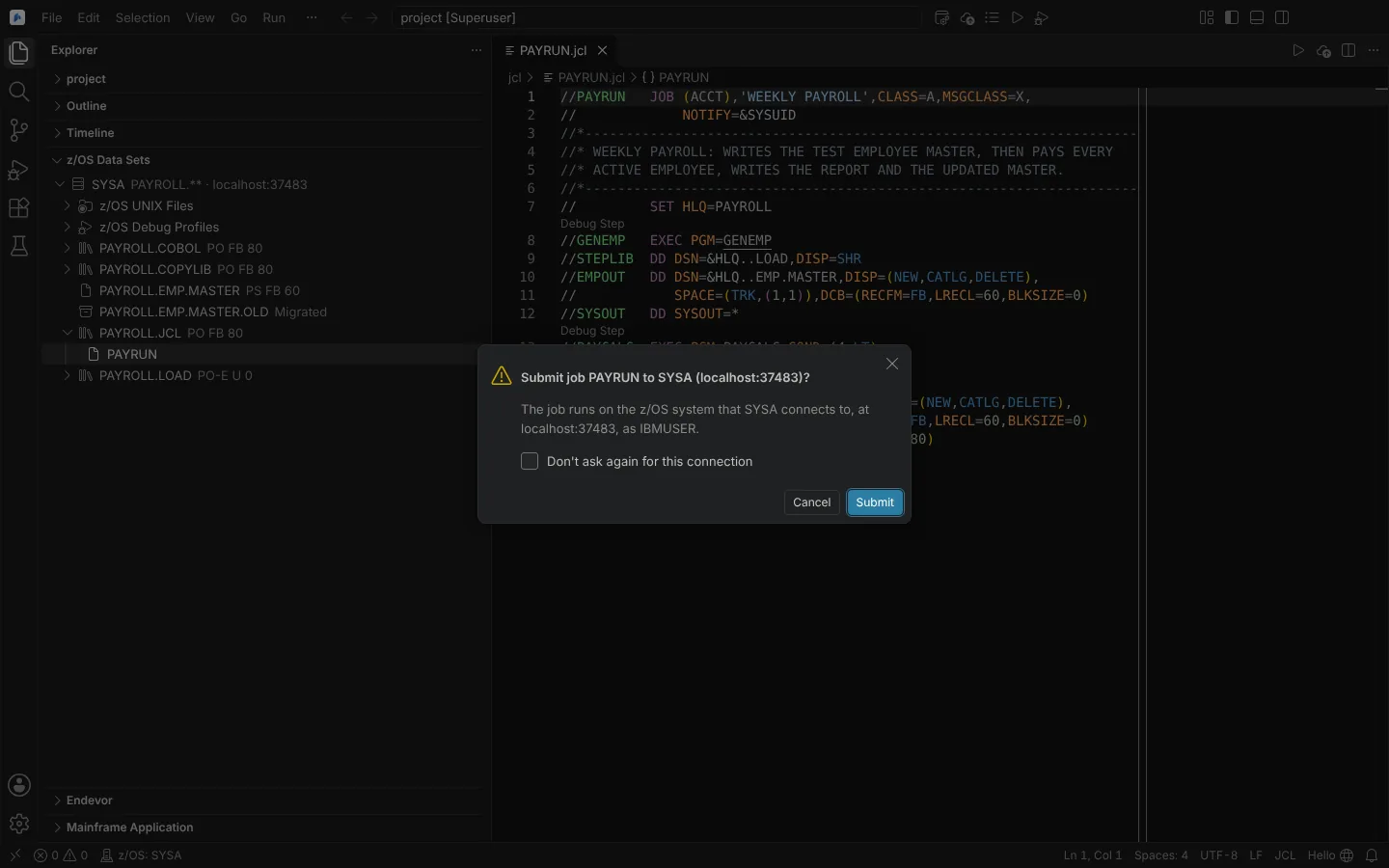 Submit JCL to z/OS asking first, naming the job, the connection, its host and port, and the user (against a modelled z/OSMF server).
"Don't ask again for this connection" is kept per connection, unless the machine setting neuralInverse.mainframe.alwaysConfirmJobSubmit makes every submission ask. With no connection, Submit offers Add z/OS Connection. A failed job gives one notification with Show Job, and the Task Completed or Task Failed signal is played and announced when a job ends.
The job editor
The job editor shows any job, on z/OS or run locally:
- name, id, origin, state, return code and times;
- each step with its condition code, abend, messages and steps not run, and the failing statement as a link to its line;
- the spool by step, each file opening read-only;
- for a z/OS job, its class and JES phase and the SDSF actions below;
- for a local run, "Compiled With" and a note that results are GnuCOBOL's.
It follows the job while it runs and reopens after a restart from the job's record. Show Mainframe Jobs picks another job. When a step abends, the Language Environment message is mapped to the failing source line: see Abend to source. Accessibility Help (Alt+F1) in the job editor names its keys.
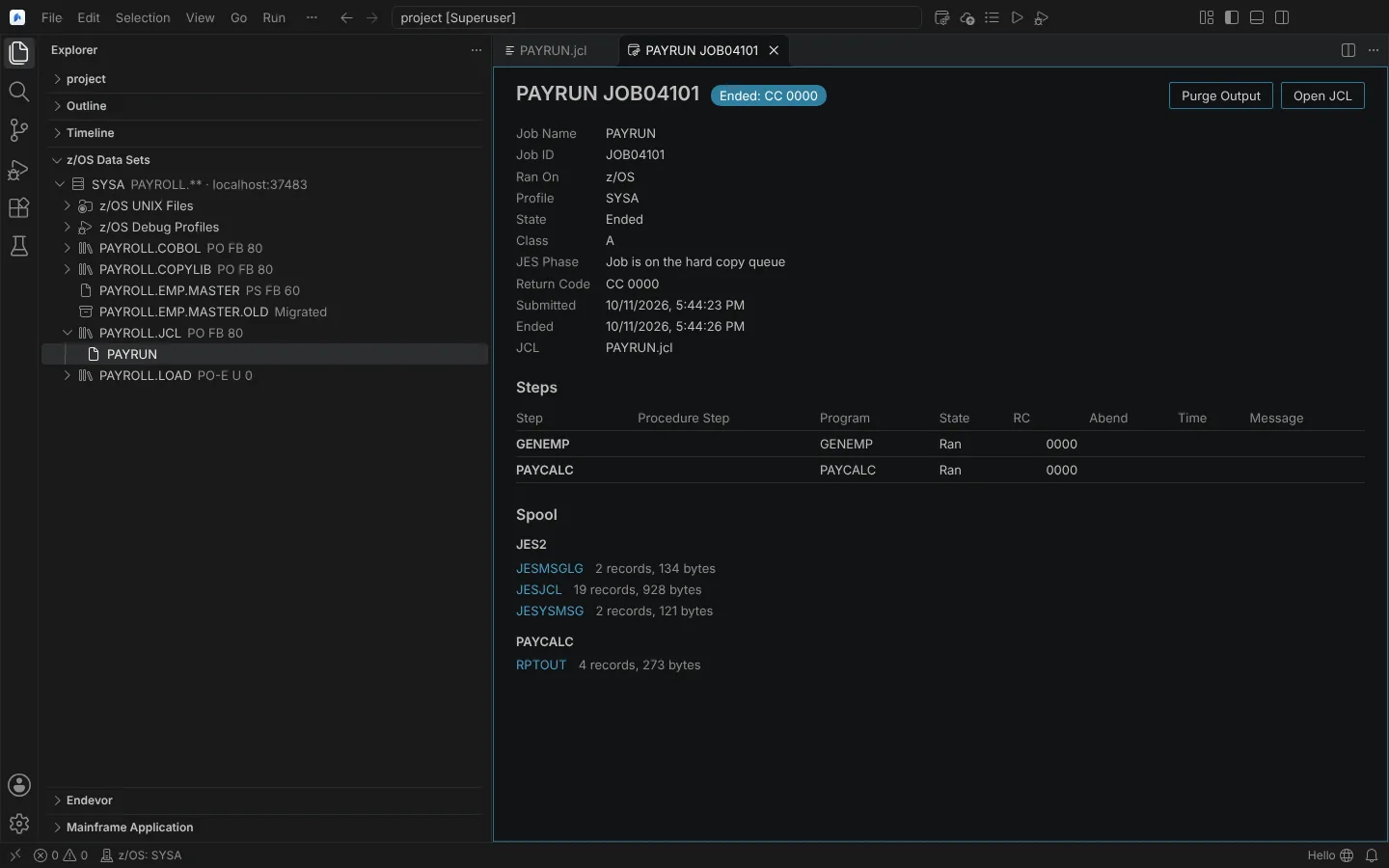 The job editor for a sample job: job ID, JES phase, return code, each step's RC and the spool by step (against a modelled z/OSMF server).
Spool files
Every spool file opens as a read-only document (zosspool:). One larger than neuralInverse.mainframe.largeDownloadMegabytes (50 MB) opens with its first 10,000 records and Load All Spool Records.
JES2 messages (IEF142I, IEF472I, IEF450I, IEF202I, IEF272I, IEF452I, IEF453I) give step results on z/OSMF levels without step data. The step-data field names are as IBM documents them, not observed.
Find jobs: Show z/OS Jobs
Show z/OS Jobs (Ctrl+Alt+Shift+S) lists up to 1,000 jobs, filtered by owner, job name prefix, job ID and status (for example owner=BATCHP prefix=PAY* status=output). The filter is remembered per connection. The filters' wildcard semantics are modelled.
Act on a job (SDSF's job actions)
From the job editor and Show z/OS Jobs:
| Command | SDSF | Notes |
|---|---|---|
| Hold z/OS Job | H | A queued or running job; followed by a status read |
| Release z/OS Job | A | Followed by a status read |
| Change z/OS Job Class | Class overtype | Followed by a status read |
| Cancel z/OS Job | C | |
| Purge z/OS Job Output | P | Asks for confirmation wherever it starts |
Edit a job's JCL
- Edit z/OS Job JCL (SDSF's SJ) opens the JCL of a job; it is resubmitted only to the system it came from.
- Edit Spool File Copy (SDSF's SE) opens a copy of a spool file you can edit.
Keep spool output
- Write Spool Output to Data Set (SDSF's XD and XDC) writes a spool file to a data set: FBA or VBA from the spool's record format, with ANSI control characters added where missing. A new data set is allocated after a confirmation.
- Save Spool Output to File (SDSF's XF) saves it to a local file.
Spool output to data set and file is tested against the z/OSMF-shaped server only.
SDSF's panels, the system log and console commands are on SDSF panels and console commands.