OpenRouter Integration
In this guide, we'll show you how to integrate Neural Inverse with OpenRouter.
What is OpenRouter? OpenRouter provides an OpenAI-compatible completion API to +280 language models and providers that you can call directly or using the OpenAI SDK. This allows developers to access a variety of LLMs through a single, unified interface.
What is Neural Inverse? Neural Inverse is an open source LLM engineering platform that helps teams trace LLM calls, monitor performance, and debug issues in their AI applications.
Two ways to integrate Neural Inverse with OpenRouter:
- You can use the OpenRouter Broadcast feature to automatically send traces to Neural Inverse without any code changes.
- You can use the Neural Inverse OpenAI SDK wrapper to manually send traces to Neural Inverse. Since OpenRouter uses the OpenAI API schema, we can utilize Neural Inverse's native integration with the OpenAI SDK, available in both Python and TypeScript.
There is more information on e.g. cost tracking or interoperability with Neural Inverse's Python SDK as well as next steps in the guides below.
1. OpenRouter Broadcast Tracing with Neural Inverse (No-Code)
OpenRouter's Broadcast feature can automatically send traces to Neural Inverse without any code changes. To enable this integration, go to your OpenRouter settings and connect your Neural Inverse API keys. Once set up, all requests processed through OpenRouter will be traced and made available in your Neural Inverse project.
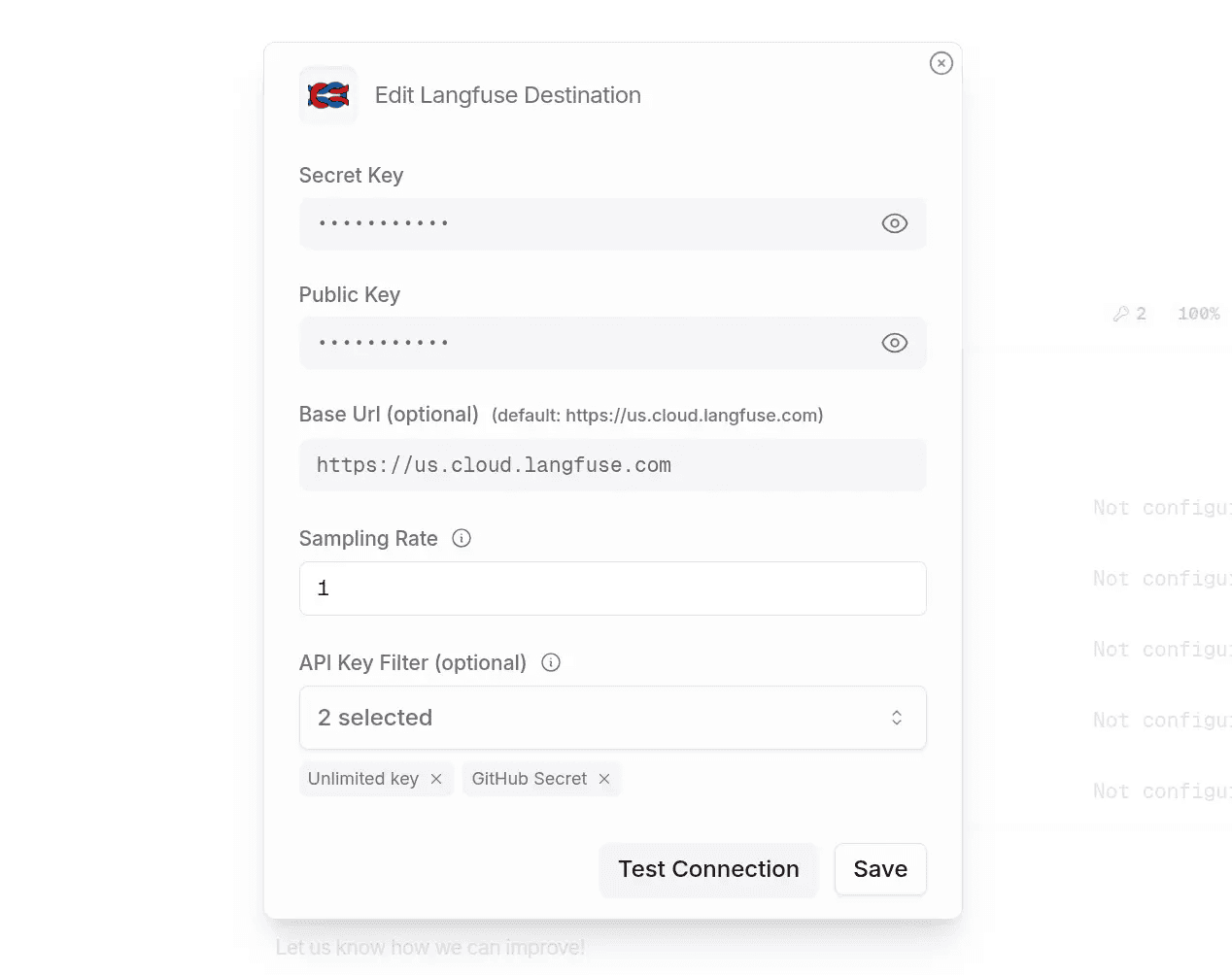
Note: This method is recommended if you want to capture all OpenRouter requests in Neural Inverse with minimal configuration, and do not require advanced features like custom trace metadata or nested tracing.
For more information about setting up your Neural Inverse API keys or available options, see the Neural Inverse getting started guide.
2. SDK Integration
Use the Neural Inverse OpenAI SDK wrapper for advanced features like nested tracing, custom metadata, and full control over trace data. The rest of this guide covers the SDK integration method.
Get started with SDK Integration
pip install langfuse openaiimport os
# Set your Neural Inverse API keys
LANGFUSE_SECRET_KEY="sk-lf-..."
LANGFUSE_PUBLIC_KEY="pk-lf-..."
# 🇪🇺 EU region
LANGFUSE_BASE_URL="https://cloud.langfuse.com"
# Other Neural Inverse data regions include 🇺🇸 US: https://us.cloud.langfuse.com, 🇯🇵 Japan: https://jp.cloud.langfuse.com and ⚕️ HIPAA: https://hipaa.cloud.langfuse.com
# Set your OpenRouter API key (OpenRouter uses the 'OPENAI_API_KEY' environment variable)
os.environ["OPENAI_API_KEY"] = "<YOUR_OPENROUTER_API_KEY>"Example 1: Simple LLM Call
Since OpenRouter provides an OpenAI-compatible API, we can use the Neural Inverse OpenAI SDK wrapper to automatically log OpenRouter calls as generations in Neural Inverse.
- The
base_urlis set to OpenRouter's API endpoint. - You can replace
"qwen/qwen-plus"with any model available on OpenRouter. - The
default_headerscan include optional headers as per OpenRouter's documentation. - The
extra_body={"usage": {"include": True}}includes the costs that OpenRouter returns.
# Import the Neural Inverse OpenAI SDK wrapper
from langfuse.openai import openai

# Create an OpenAI client with OpenRouter's base URL
client = openai.OpenAI(
    base_url="https://openrouter.ai/api/v1",
    default_headers={
        "HTTP-Referer": "<YOUR_SITE_URL>",  # Optional: Your site URL
        "X-Title": "<YOUR_SITE_NAME>",      # Optional: Your site name
    }
)

# Make a chat completion request
response = client.chat.completions.create(
    model="qwen/qwen-plus",
    messages=[
        {"role": "system", "content": "You are a helpful assistant."},
        {"role": "user", "content": "Tell me a fun fact about space."}
    ],
    extra_body={"usage": {"include": True}},
    name="fun-fact-request"  # Optional: Name of the generation in Neural Inverse
)

# Print the assistant's reply
print(response.choices[0].message.content)
Example 2: Nested LLM Calls
By using the @observe() decorator, we can capture execution details of any Python function, including nested LLM calls, inputs, outputs, and execution times. This provides in-depth observability with minimal code changes.
- The
@observe()decorator captures inputs, outputs, and execution details of the functions. - Nested functions
summarize_textandanalyze_sentimentare also decorated, creating a hierarchy of traces. - Each LLM call within the functions is logged, providing a detailed trace of the execution flow.
from langfuse import observe
from langfuse.openai import openai

# Create an OpenAI client with OpenRouter's base URL
client = openai.OpenAI(
    base_url="https://openrouter.ai/api/v1",
)

@observe()  # This decorator enables tracing of the function
def analyze_text(text: str):
    # First LLM call: Summarize the text
    summary_response = summarize_text(text)
    summary = summary_response.choices[0].message.content

    # Second LLM call: Analyze the sentiment of the summary
    sentiment_response = analyze_sentiment(summary)
    sentiment = sentiment_response.choices[0].message.content

    return {
        "summary": summary,
        "sentiment": sentiment
    }

@observe()  # Nested function to be traced
def summarize_text(text: str):
    return client.chat.completions.create(
        model="openai/gpt-3.5-turbo",
        messages=[
            {"role": "system", "content": "You summarize texts in a concise manner."},
            {"role": "user", "content": f"Summarize the following text:\n{text}"}
        ],
        extra_body={"usage": {"include": True}},
        name="summarize-text"
    )

@observe()  # Nested function to be traced
def analyze_sentiment(summary: str):
    return client.chat.completions.create(
        model="openai/gpt-3.5-turbo",
        messages=[
            {"role": "system", "content": "You analyze the sentiment of texts."},
            {"role": "user", "content": f"Analyze the sentiment of the following summary:\n{summary}"}
        ],
        extra_body={"usage": {"include": True}},
        name="analyze-sentiment"
    )

# Example usage
text_to_analyze = "OpenAI's GPT-4 model has significantly advanced the field of AI, setting new standards for language generation."
analyze_text(text_to_analyze)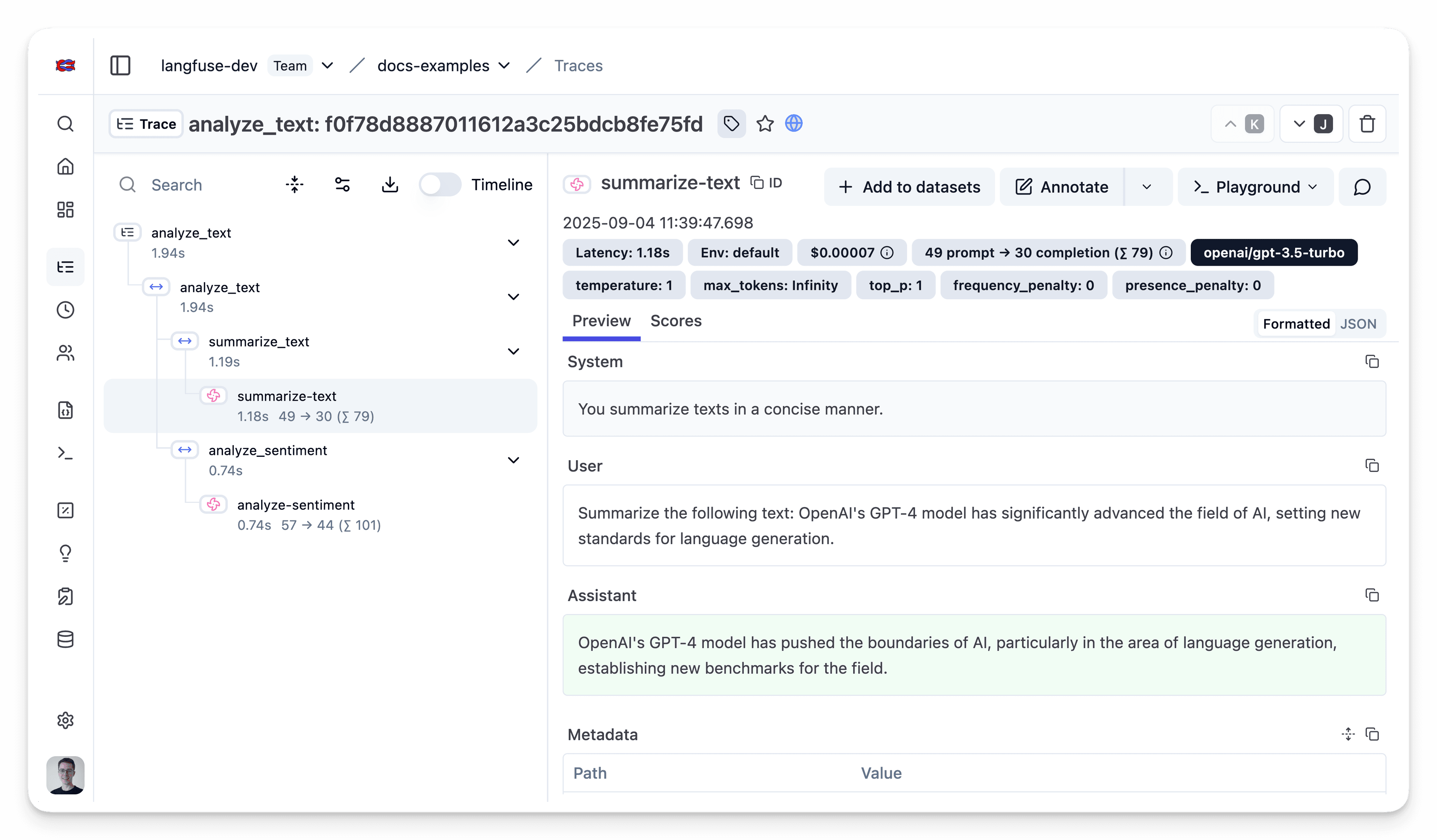
Public link to example trace in Neural Inverse
Cost Tracking
Neural Inverse token and cost tracking can directly capture the OpenRouter cost instead of calculating it. This will increase the accuracy of the cost tracking, especially for less popular models.
To enable this, you need to:
- Use the Neural Inverse OpenAI integration as shown above
- Enable Usage Accounting in OpenRouter as this results in costs being returned by OpenRouter for each call
Interoperability with the Python SDK
You can use this integration together with the Langfuse SDKs to add additional attributes to the observation.
The @observe() decorator provides a convenient way to automatically wrap your instrumented code and add additional attributes to the observation.
from langfuse import observe, propagate_attributes, get_client

langfuse = get_client()

@observe()
def my_llm_pipeline(input):
    # Add additional attributes (user_id, session_id, metadata, version, tags) to all spans created within this execution scope
    with propagate_attributes(
        user_id="user_123",
        session_id="session_abc",
        tags=["agent", "my-observation"],
        metadata={"email": "user@langfuse.com"},
        version="1.0.0"
    ):

        # YOUR APPLICATION CODE HERE
        result = call_llm(input)

        return result

# Run the function
my_llm_pipeline("Hi")
Learn more about using the Decorator in the Langfuse SDK instrumentation docs.
The Context Manager allows you to wrap your instrumented code using context managers (with with statements), which allows you to add additional attributes to the observation.
from langfuse import get_client, propagate_attributes

langfuse = get_client()

with langfuse.start_as_current_observation(
    as_type="span",
    name="my-observation",
    trace_context={"trace_id": "abcdef1234567890abcdef1234567890"},  # Must be 32 hex chars
) as observation:

    # Add additional attributes (user_id, session_id, metadata, version, tags)
    # to all observations created within this execution scope
    with propagate_attributes(
        user_id="user_123",
        session_id="session_abc",
        metadata={"experiment": "variant_a", "env": "prod"},
        version="1.0",
    ):
        # YOUR APPLICATION CODE HERE
        result = call_llm("some input")

# Flush events in short-lived applications
langfuse.flush()
Learn more about using the Context Manager in the Langfuse SDK instrumentation docs.
Troubleshooting
No observations appearing
First, enable debug mode in the Python SDK:
export LANGFUSE_DEBUG="True"Then run your application and check the debug logs:
- OTel observations appear in the logs: Your application is instrumented correctly but observations are not reaching Langfuse. To resolve this:
- Call
langfuse.flush()at the end of your application to ensure all observations are exported. - Verify that you are using the correct API keys and base URL.
- Call
- No OTel spans in the logs: Your application is not instrumented correctly. Make sure the instrumentation runs before your application code.
Unwanted observations in Langfuse
The Langfuse SDK is based on OpenTelemetry. Other libraries in your application may emit OTel spans that are not relevant to you. These still count toward your billable units, so you should filter them out. See Unwanted spans in Langfuse for details.
Missing attributes
Some attributes may be stored in the metadata object of the observation rather than being mapped to the Langfuse data model. If a mapping or integration does not work as expected, please raise an issue on GitHub.
Next Steps
Once you have instrumented your code, you can manage, evaluate and debug your application:
Manage prompts in Langfuse
Add evaluation scores
Run LLM-as-a-judge Evaluators
Create datasets
Create custom dashboards
Test queries in the Playground
Last edited