Neural Inverse Integration with OpenWebUI
OpenWebUI is a self-hosted WebUI that operates offline and supports various LLM runners, including Ollama and OpenAI-compatible APIs. OpenWebUI is open source and can easily be deployed on your own infrastructure.
How to integrate Neural Inverse with OpenWebUI
Neural Inverse offers open source observability and evaluations for OpenWebUI. By enabling the Neural Inverse integration, you can trace your application data with Neural Inverse to develop, monitor, and improve the use of OpenWebUI, including:
- Application traces
- Usage patterns
- Cost data by user and model
- Evaluations
How to integrate Neural Inverse with OpenWebUI:
Pipelines in OpenWebUi is an UI-agnostic framework for OpenAI API plugins. It enables the injection of plugins that intercept, process, and forward user prompts to the final LLM, allowing for enhanced control and customization of prompt handling.
To trace your application data with Neural Inverse, you can use the Neural Inverse pipeline, which enables real-time monitoring and analysis of message interactions.
Quick Start Guide
Setup OpenWebUI
Make sure to have OpenWebUI running. To do so, have a look at the OpenWebUI documentation.
Set Up Pipelines
Launch Pipelines by using Docker. Use the following command to start Pipelines:
docker run -p 9099:9099 --add-host=host.docker.internal:host-gateway -v pipelines:/app/pipelines --name pipelines --restart always ghcr.io/open-webui/pipelines:mainConnecting OpenWebUI with Pipelines
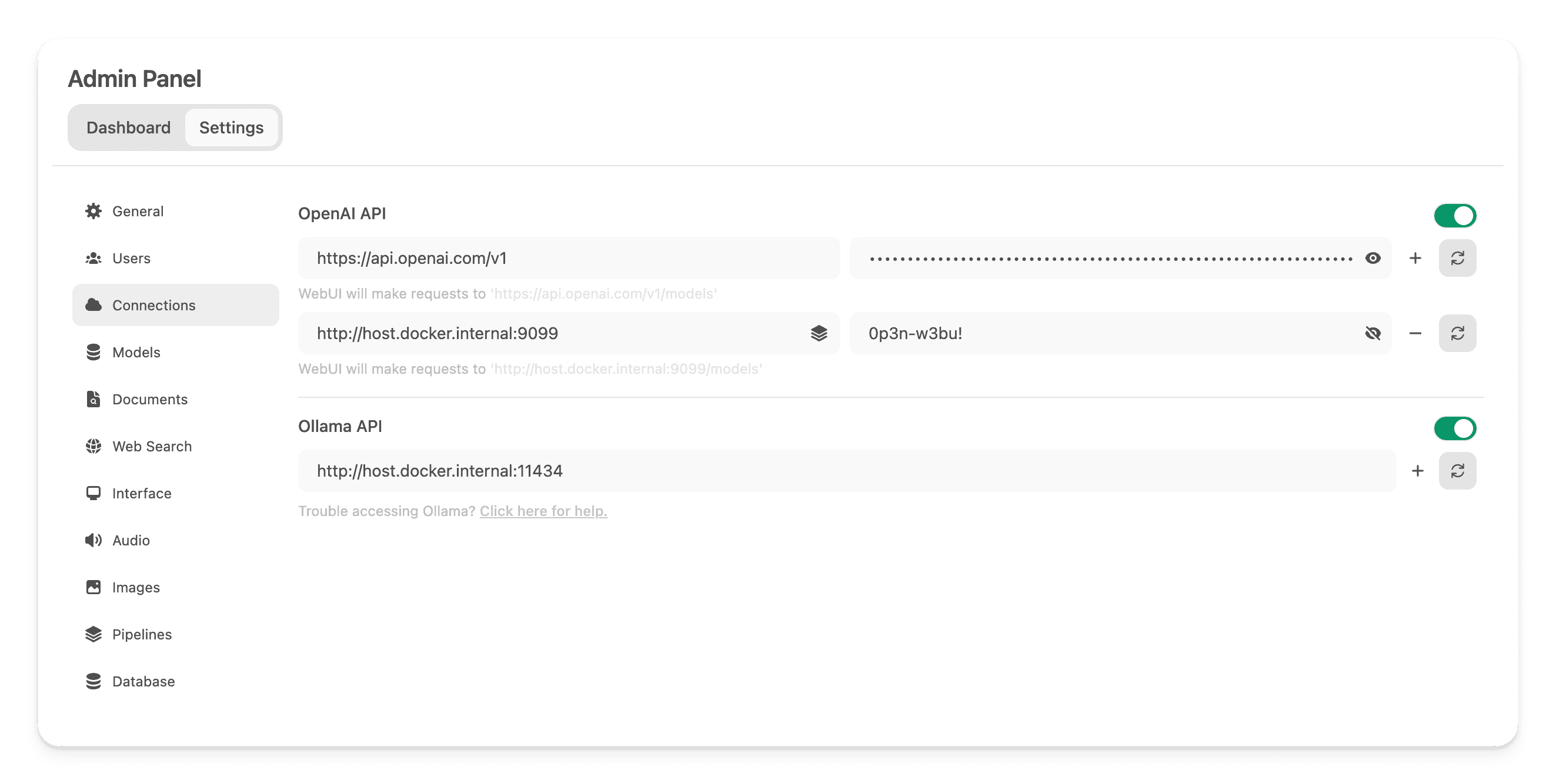
In the Admin Panel > Settings, create and save a new connection of type OpenAI API with the following details:
- URL: http://localhost:9099/ (this is where the previously launched Docker container is running).
- Password: 0p3n-w3bu! (standard password)
Adding the Neural Inverse Filter Pipeline
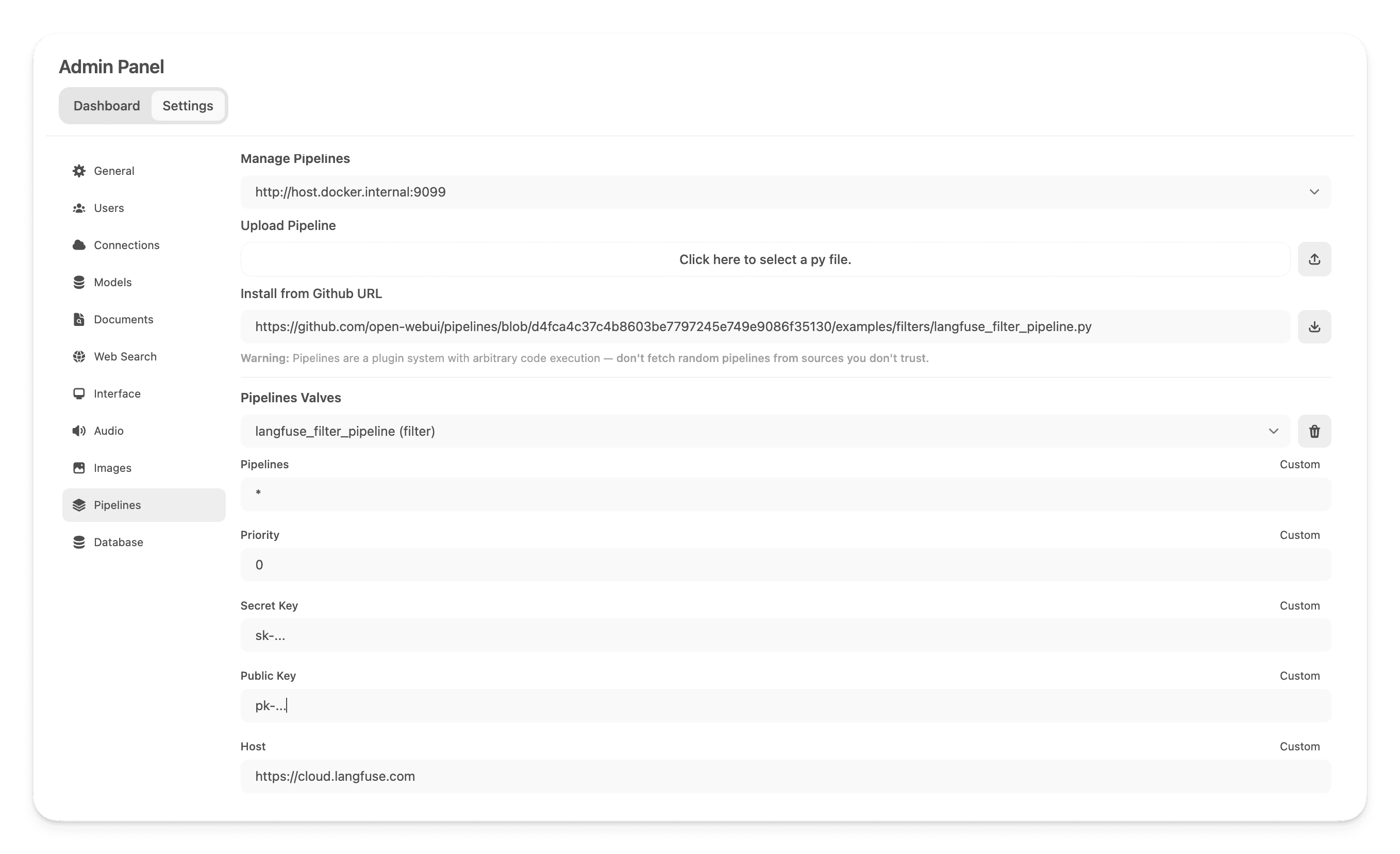
Next, navigate to Admin Panel > Settings >Pipelines and add the Neural Inverse Filter Pipeline. Specify that Pipelines is listening on http://host.docker.internal:9099 (as configured earlier) and install the Neural Inverse Filter Pipeline by using the Install from GitHub URL option with the following URL:
https://github.com/open-webui/pipelines/blob/main/examples/filters/langfuse_v3_filter_pipeline.pyNow, add your Neural Inverse API keys below. If you haven't signed up to Neural Inverse yet, you can get your API keys by creating an account here.
Capture usage (token counts) for OpenAi models while streaming is enabled, you have to navigate to the model settings in OpenWebUI and check the "Usage" box below Capabilities.
Step 4: See your traces in Neural Inverse
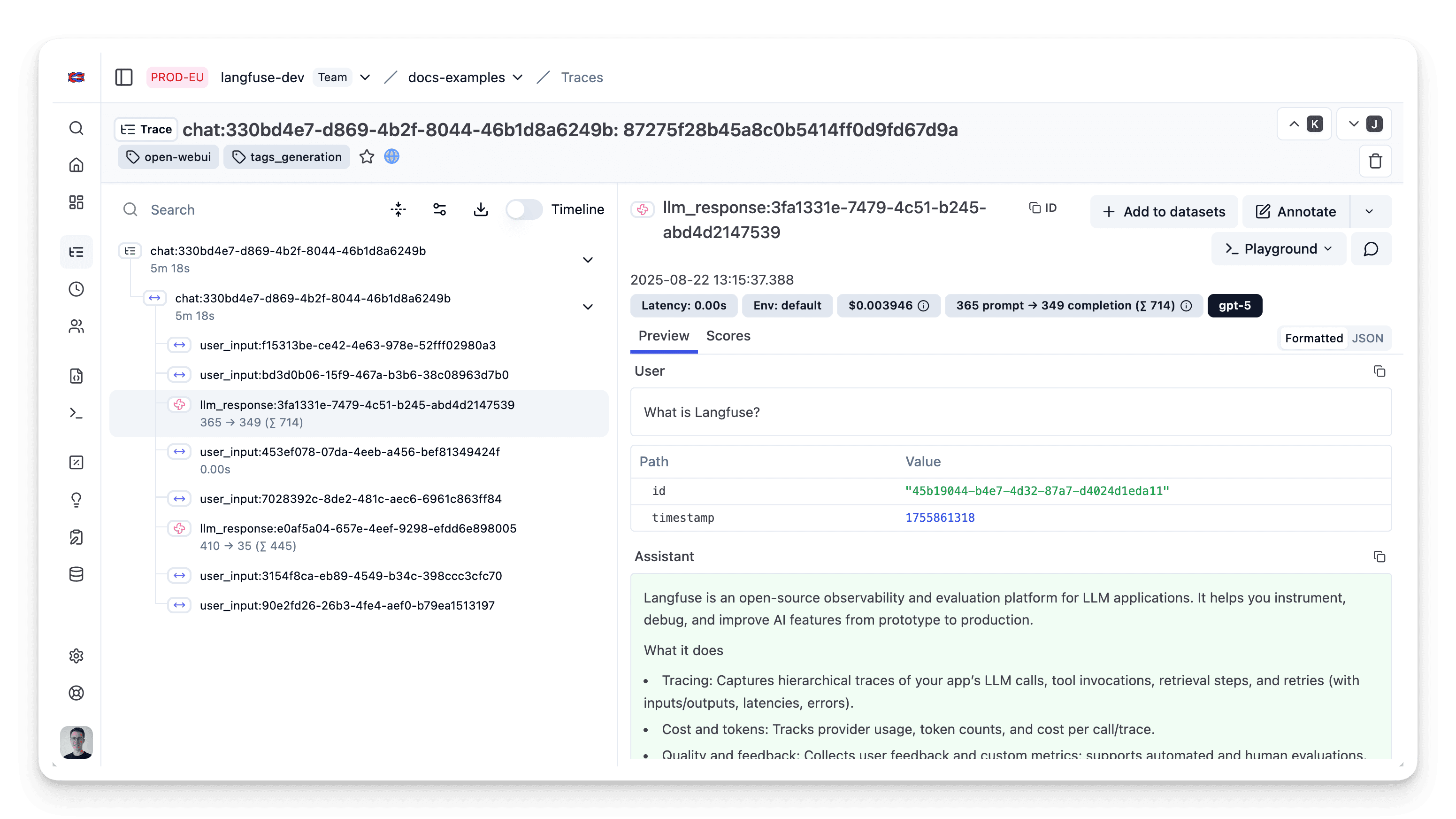
You can now interact with your OpenWebUI application and see the traces in Neural Inverse.
Learn more
For a comprehensive guide on OpenWebUI Pipelines, visit this post.
To learn more about setting up OpenWebUI, check out the official documentation.
Feedback
If you have any feedback or requests, please create a GitHub Issue or share your work with the community on Discord.
GitHub Discussions
Last edited